
A 4G trail camera is only useful once the photos actually reach your phone. The good news: setup takes a few minutes if you do it in the right order. Here's how to set up a 4G trail camera step by step, plus the small things that trip people up.
Before you head out
- Charge the battery (or fit fresh lithium cells) fully.
- Have a micro SD card ready — up to 128 GB. A tested 128GB SD card avoids corrupted clips.
- Have the SIM/data plan for the camera ready (your camera's instructions say which type it uses).
Step 1 — Insert the SIM and SD card
With the camera off, insert the SIM and the micro SD card in their slots. Dual-SIM models like the 4G Solar Trail Camera 4K will pick the strongest network automatically once powered on.
Step 2 — Install the app and pair
Download the companion app, create an account, and add the camera — usually by scanning a QR code on the device or in its menu. The app is where your photos land and where you change settings remotely.
Step 3 — Check signal where the camera will live
Power on at (or near) the actual spot and confirm it has bars and sends a test photo. Signal can vary a lot across a property — a corner with no coverage means no alerts. No signal anywhere on your land? A WiFi model (no SIM) may suit you better.
Step 4 — Set photo/video and send mode
In the app or menu, choose photo or video, resolution, and how often it sends (instant vs batched). Sending every trigger in 4K uses more data — batch or compress if your plan is small.
Step 5 — Mount and aim
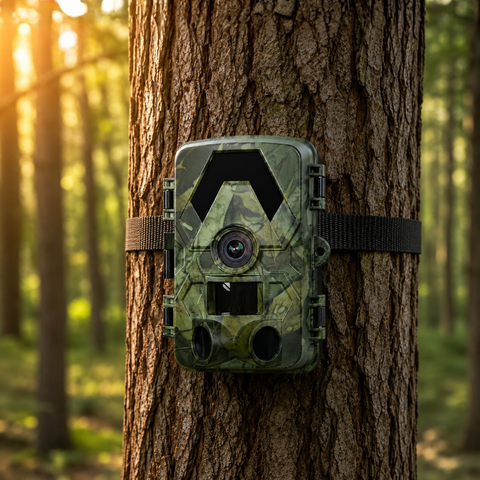
Strap firmly to a solid trunk at about 4–5 feet, angled slightly down and ~45° to the trail, set back 3–5 m, facing north to avoid sun glare. Full detail in the placement guide.
Step 6 — Walk-test it
Walk through the detection zone and confirm a photo arrives on your phone. Adjust height/angle until the test shots frame the trail cleanly. Then leave it — and stop checking it in person (that's the whole point of cellular).
Quick troubleshooting
- No photos arriving? Re-check signal at the spot and that the SIM/data plan is active.
- Empty photos? Vegetation in the detection zone or the camera facing the sun — clear a lane, re-aim north.
- Battery draining fast? Cold weather and lots of 4K sends; switch to solar or lithium and batch sends.
Each SightForest camera also has a model-specific walkthrough in our setup guides. Browse all trail cameras or take the gear quiz.
FAQ
Do I need a SIM card for a 4G trail camera?
Yes — a cellular camera needs an active SIM/data plan to send photos. WiFi models don't use a SIM but only work within range of your phone.
How do I know if my trail camera has signal?
Power it on at the actual location and send a test photo from the app. Bars in the menu or app confirm coverage; test before you leave.
Why isn't my 4G trail camera sending photos?
Usually no signal at the spot, an inactive data plan, or a send mode set to batch. Re-check coverage, the SIM/plan, and the app's send settings.
What SD card does a trail camera need?
A micro SD card up to 128 GB, fast and reliable. Format it in the camera before first use to avoid errors.
Not sure which model fits? Start with the 4G trail camera buying guide.
